Round Glassy Buttons in Photoshop Photoshop Tutorial

Make round glass buttons in Photoshop
This Photoshop tutorial shows you how to make round, reflective buttons that look like glass. Also check out my Liquid Glass apple effect.
1.
As always, start with a transparent layer.
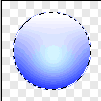
Draw a circle using the circular marquee tool. Tip: Hold the alt/option key to draw from the center and hold the shift key to draw a perfect circle.

2
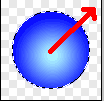
Now we want to create a circular gradient, from bark to light blue. Use the settings here, then drag from the middle of the circle. Don’t deselect.

3


 Create a new layer and change the gradient setting to this: Linear, Foreground to transparent and change your foreground color to white.
4.
Drag the gradient tool from the top to the bottom, with the top white.
5
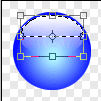
Press Ctrl/Cmd+T for the free transform tool
Bring the bottom to almost 1/2 way. Bring the top and sides in a little bit until it looks similar to the picture.
6
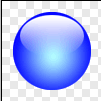
For added realism add a slight gaussian blur to the highlight and drop the opacity a little.
7

You may also add text. Put the text layer behind the highlight and lower the opacity.
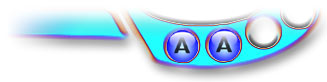
Add the buttons to your interface – Merge Visiable and drag the buttons to your interface.
PS Don’t forget to follow us on Social Media for more tips.. (I've been posting some fun Instagram and Facebook Stories lately)
You can get my free Layer Blending modes ebook along with dozens of exclusive Photoshop Goodies here

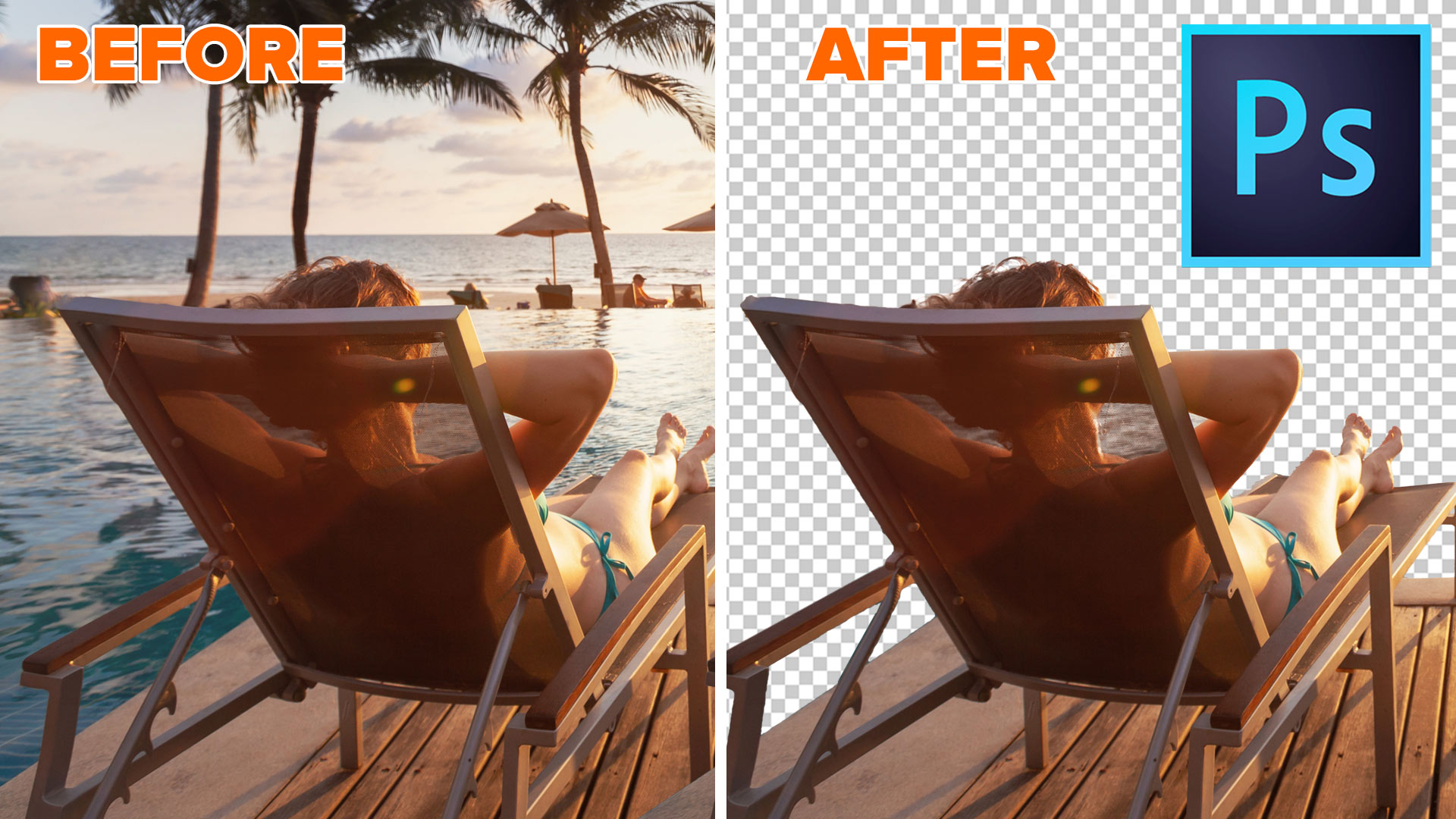
This Photoshop tutorial will teach you some of the detailed steps to remove a background in Photoshop with high resolution...

How to use the new Features in Photoshop 2023 June v 24.6 release.

This tutorial shows you the fastest, easiest way to fix edges on masks in Lightroom or Camera RAW, its easy...