
Realistic Rock in Photoshop Tutorial
Step 1
Create a new RGB Image of you desired size.
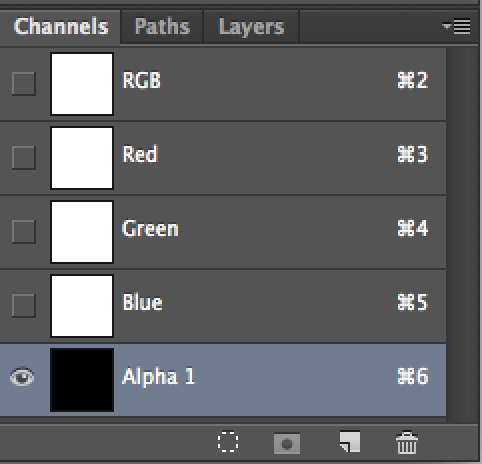
In the channels panel click on new Channel. It will become alpha 1.
Step 2
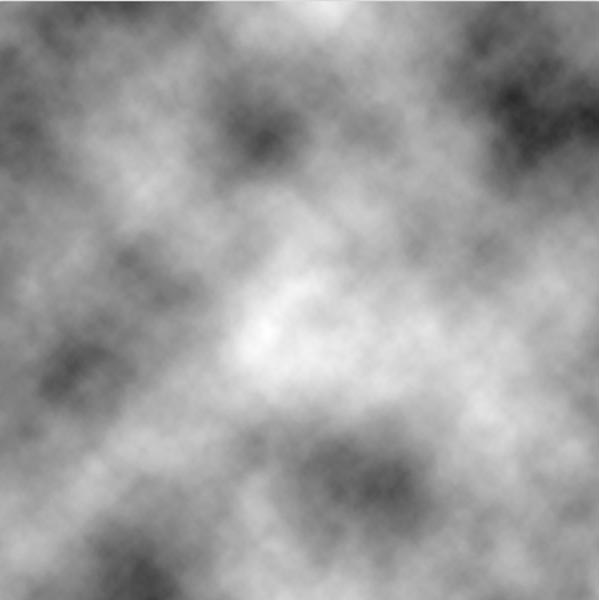
Press “D” To reset the foreground and background colors. Filter>Render>Clouds
Step 3
This is what you will see in alpha 1.
Still in the Channels panel, click on the RGB thumbnail.
Step 4
Switch to the layers panel
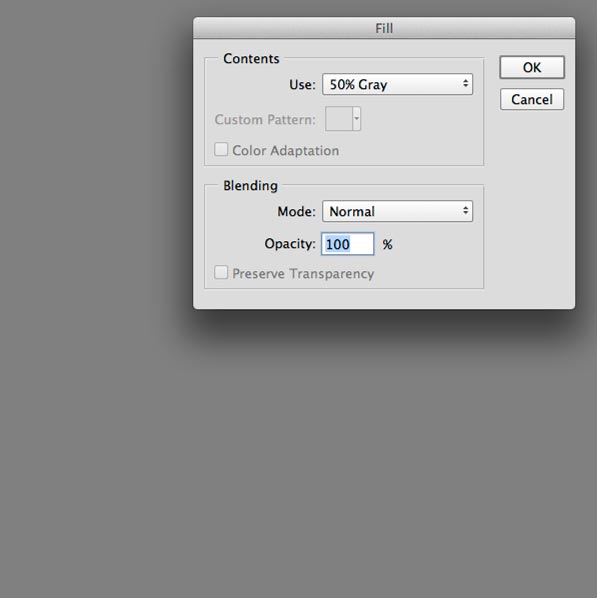
I have found that filling with 50% gray helps produce a more even rock texture.
Press Shift+Delete (Shift+Backspace on Mac) for the fill dialog. Choose 50% gray for contents. (For a more metallic effect, leave white instead of changing to gray)
Step 5
Filter>Render>Lighting effects.
You will need to experiment with some settings, but here are the essentials
Set light to Infinite
Select Alpha 1 from texture
Choose something for the color, in this case an orange.
Change the height to get more or less texture.
Grab the on-screen widget and drag around for different angles and intensity.
Click ok
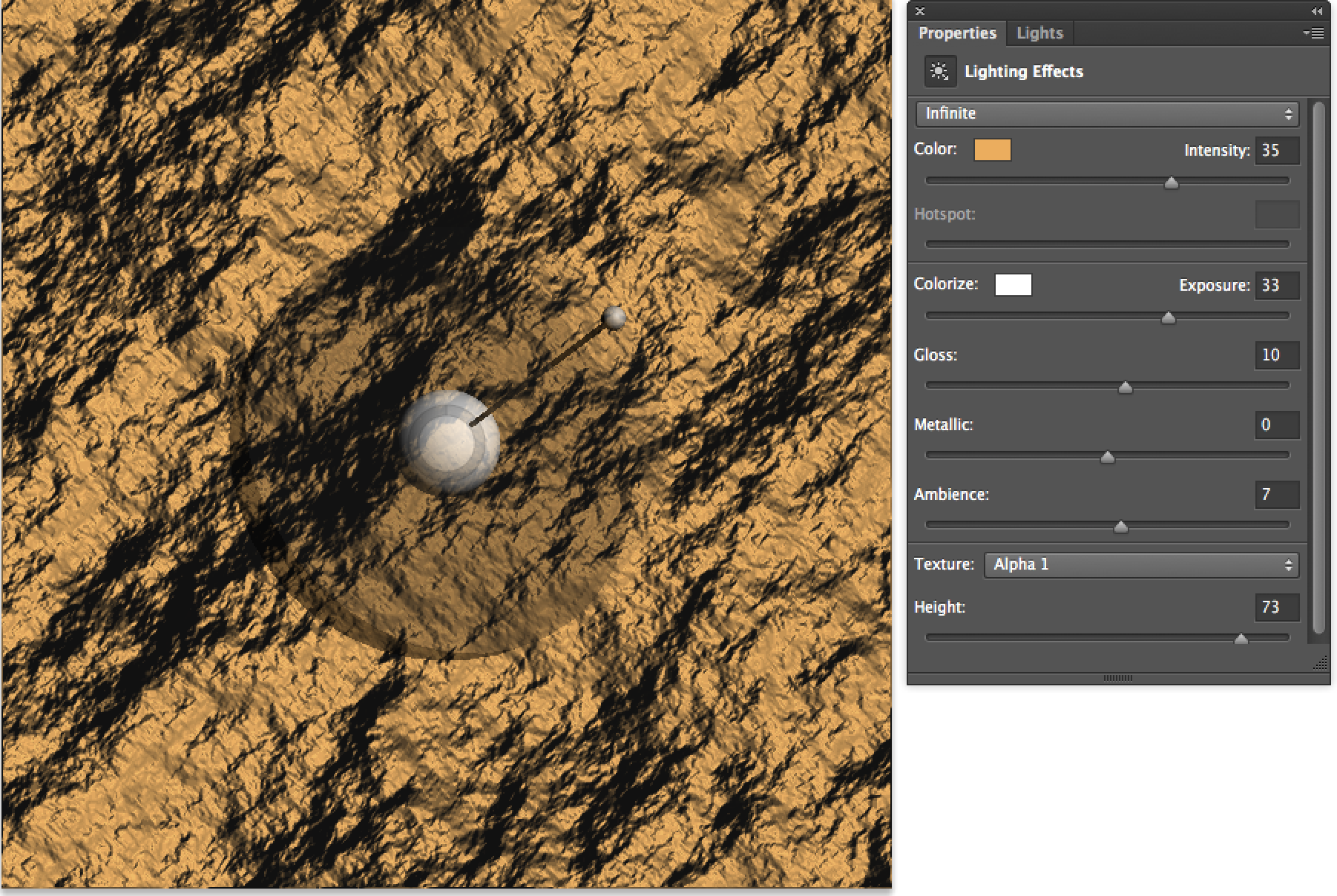
Step 6
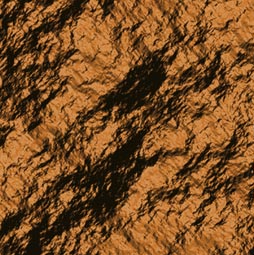
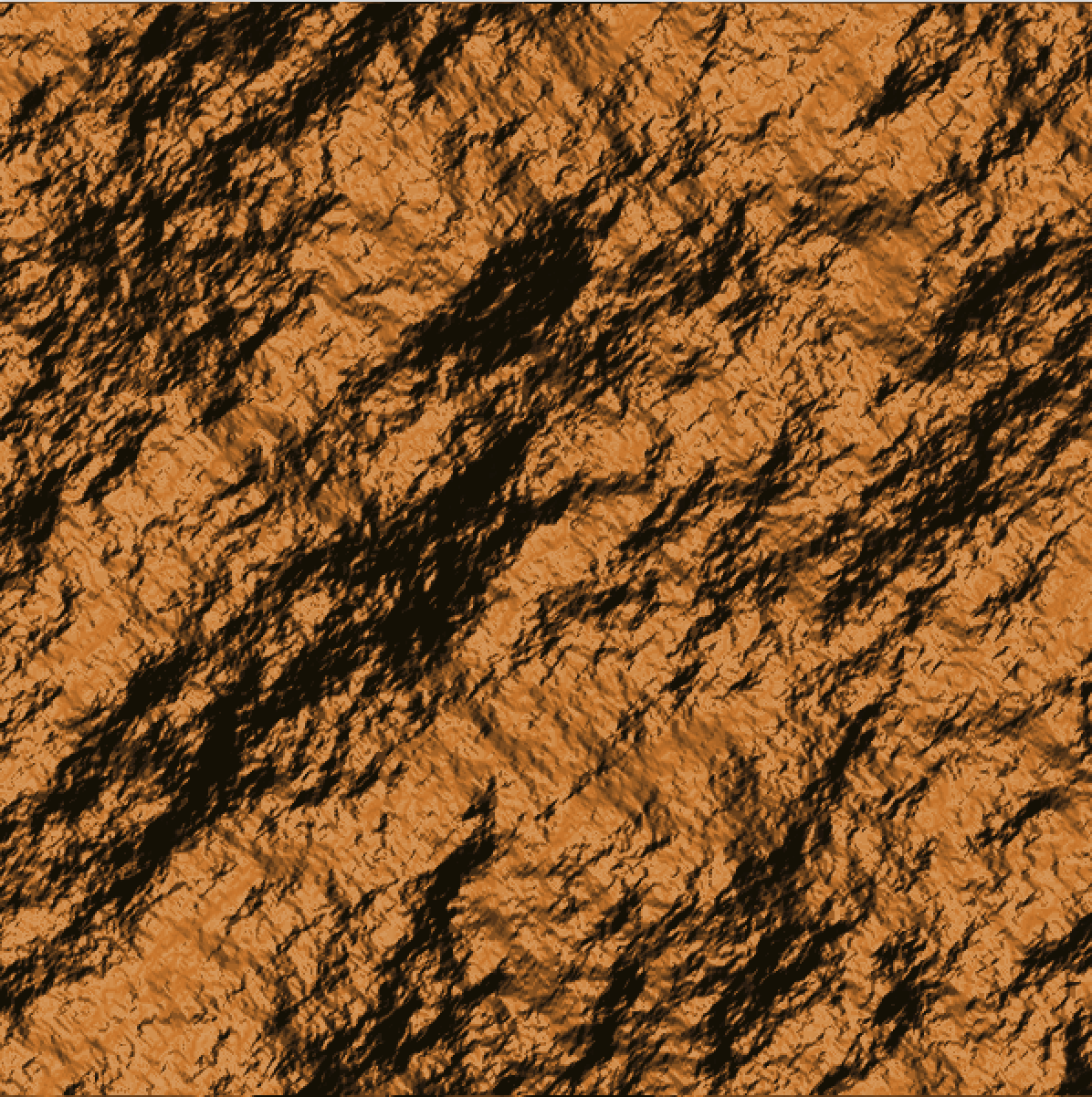
Instant rock.
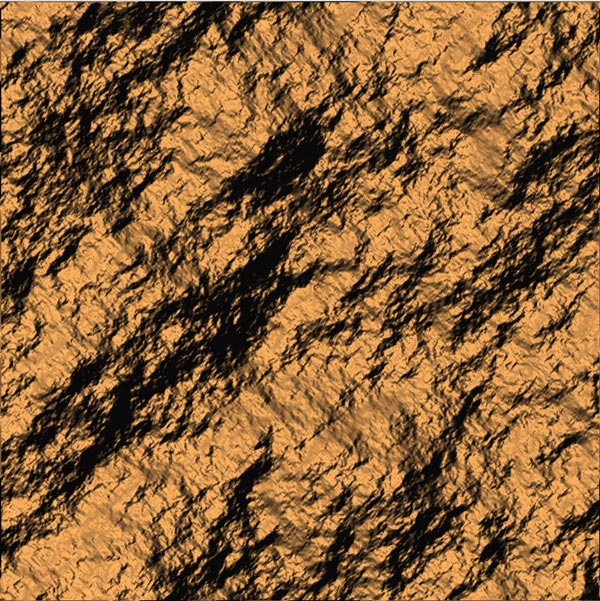
Step 7
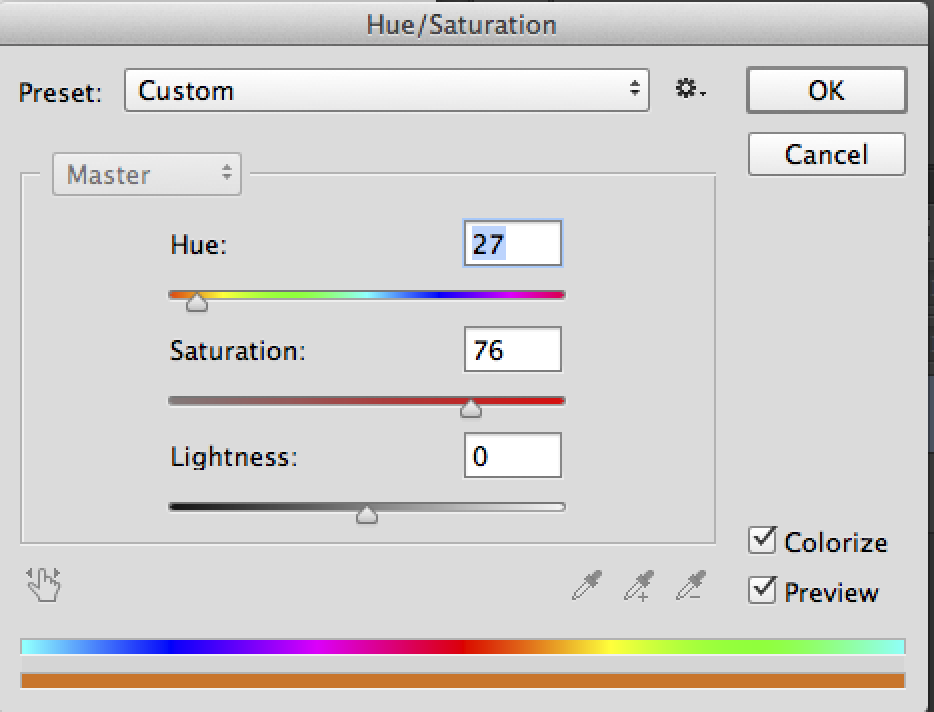
For some variation: Add a Hue/Saturation adjustment layer
Reduce the saturation for an interesting look
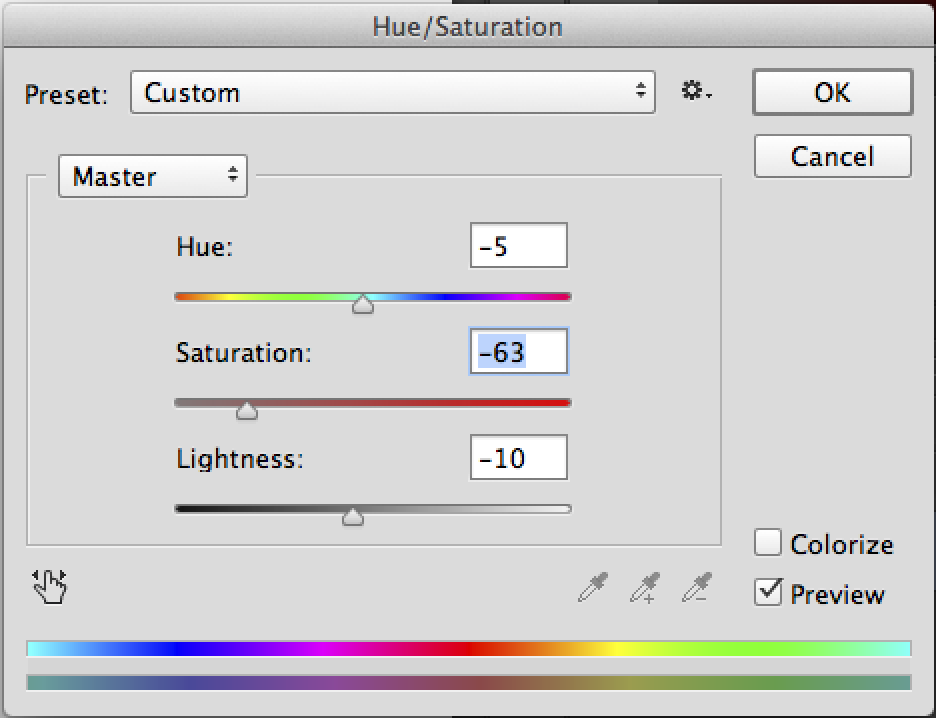
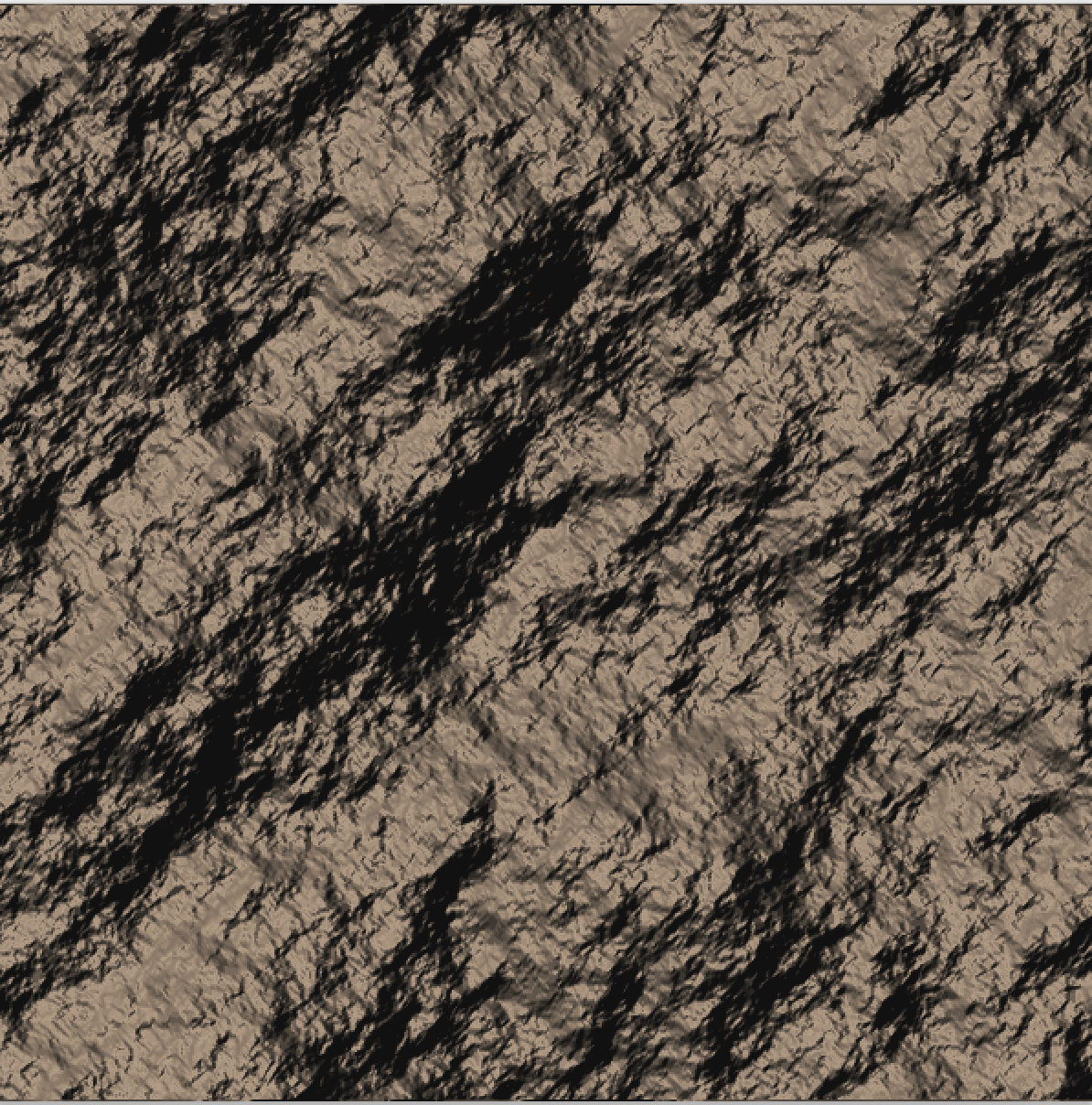
Or turn on the colorize option and try something more colorful
As always, please leave a comment and let me know your thoughts. Also. let me know what kinds of tutorials you would like to see in the future.

Keep growing with Premium Courses
Photoshop 2026 for Digital Photographers
Learn Photoshop properly, from the basics to pro retouching, step by step.
$129.00 · one-time purchase · instant download

Free for you
The Photoshop Vault
Get my free Layer Blending Modes ebook along with dozens of exclusive Photoshop goodies: actions, brushes, presets and cheat sheets.
You're on the list, so your free goodies are waiting for you in the Vault.
Get Free Photoshop Goodies Open the Vault
3D Effect using Channels Photoshop Tutorial
This is how you get the 3D look using channels. By creating a bump map and transfering it to an alpha channel,... Read tutorial
Original Gangsta bling diamonds Photoshop Tutorial
This is the original Tutorial on this rap diamond effect, there have been many rips of it in other places. (imitation is... Read tutorial
Cut out hair and difficult Images in Photoshop Tutorial
We will use Channels to help mask out a complex objects with clean edges. This technique will also save you a lot... Read tutorial
Wire frame Text effect in Photoshop Tutorial
In this Photoshop tutorial, learn how to create text that looks like it's made out of metal wire. The text remains fully... Read tutorial
Reflective Liquid type Photoshop Tutorial
Tutorials on creating metal type abound online, as do variations on simple liquid effects. Most are fairly short, offering a good foundation... Read tutorial










Looks like a cool tutorial but I’m not getting past step 4. I’m using Windows 8 and CS6 and things aren’t the same as in this tut.
Lighting Effects is grayed out on Step 5. I use CS6 on Windows 7. I did the Channels part, then, the fill layer. When I go to Filter>Render>Lighting Effects, it is not possible to click on it. Help, please? Thank you!
Su
Having trouble getting this to work. I’m using PS CS4 (if that matters.) First, Shift->Delete doesn’t bring up the Fill dialog. I need to Ctl->A and then get to it manually through the Edit menu. That’s where I’m stuck. After I’ve done the fill operation, I got to Filter->Render, only to discover that Lighting Effects (and Lens Flare) are both disabled. I’ve tried both with the window selected (Ctl->A) and not (Ctl->D). Any suggestions?
Shift+Backspace on Windows. If render is disabled you are in the wrong color space, You need to be in RGB