
Reflections in Photoshop Tutorial, graphics and text

In this tutorial I’m going to show you how to create a reflection in Photoshop. This is more of a graphic design trick that has been used a lot lately for things like logos, text and modern design. If you want to do a reflection on Photographs, check out this tutorial instead
Step 1
Start with a gradient. Tip: To constrain the gradient to 90 degrees hold down the shift key.

Step 2
Add your text or image

Step 3
Make a copy of the text by dragging to the new layer icon (or pressing Ctrl/Cmd+J)
On the copy go into free transform by pressing Ctr/Cmd+T.
Left click >Flip Vertical.
Drag the copy beneath the original, so that it looks reflected
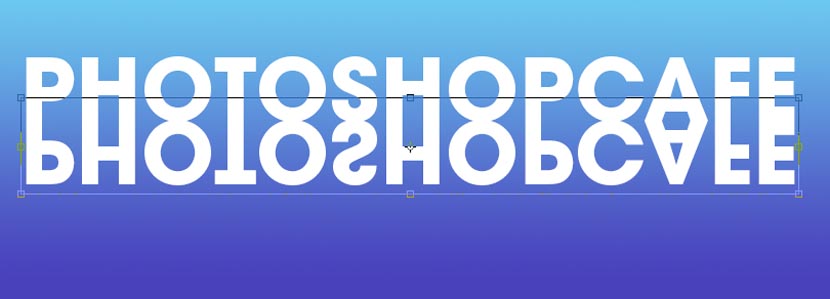
Step 4
Add a layer mask to the reflected copy and drag with a black to white gradient. (See the Gradient masking technique here)
Experiment with different starting and end point on the gradient for different results.

Step 5
You should now have something that resembles this, for a sharp reflection.

Extra Credit, softer reflection
There are times when you want the reflection to be a bit softer, this simulated a different kind of surface that you are reflecting onto.
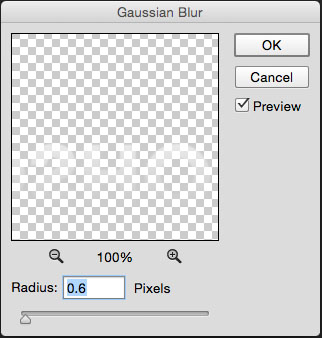
Choose Filter>Blur>Gaussian Blur
You will have the option to convert to a Smart Object. Accept this option.
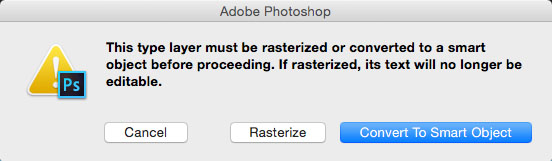
Apply a small amount of blur to the reflection to suit your tastes
Here is the softer result.

Recommended for this tutorial
Photoshop Compositing: Sky City Project. Photoshop 2026
Build a complete composite from start to finish and learn the techniques behind it.
$39.99 · one-time purchase · instant download

Free for you
The Photoshop Vault
Get my free Layer Blending Modes ebook along with dozens of exclusive Photoshop goodies: actions, brushes, presets and cheat sheets.
You're on the list, so your free goodies are waiting for you in the Vault.
Get Free Photoshop Goodies Open the Vault
Plastic Engraved type in Photoshop Photoshop Tutorial
How to embed type in photoshop. Heres a tutorial that will how you how to carve your mark. This is so simple... Read tutorial
Chrome text in Photoshop Tutorial
The essential chrome effect, don't leave home without it. This works on any object, not just text. Learn how to create chrome... Read tutorial
Reflective Liquid type Photoshop Tutorial
Tutorials on creating metal type abound online, as do variations on simple liquid effects. Most are fairly short, offering a good foundation... Read tutorial
How to make re-usable graffiti in Photoshop tutorial
Time to tag your images in Photoshop, here's the tutorial on creating reusable graffiti in Photoshop. Read tutorial
Original Gangsta bling diamonds Photoshop Tutorial
This is the original Tutorial on this rap diamond effect, there have been many rips of it in other places. (imitation is... Read tutorial







Great and easy guide.
Wonderful tutorial, thanks