Installation walkthrough
FAQ: Read First
Here are some recent problems and workarounds/fixes.
How accounts and downloads work short video – Download training, step-by-step
How to Download / Redownload your courses on PhotoshopCAFE (updated 2025)
Have you purchased one of our awesome courses and need help downloading? NOTE: You need to download to a desktop or laptop computer, not your mobile device.
It doesn’t matter if you have just made your first purchase (yay, congrats!), or you have purchased in the past. This guide will help you download your course. Follow the steps in BOLD, if you have problems read the smaller print.
If you are looking for the VAULT access, the link is included near the bottom of every newsletter.
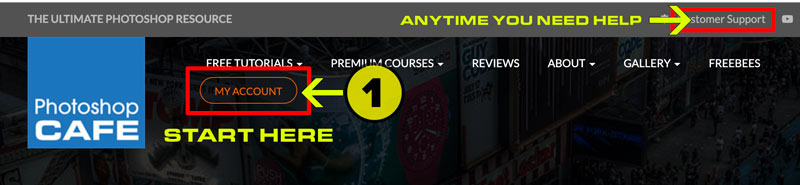
1. Go to photoshopcafe.com and you will see My Account at the top of every page. Click on this button.
If you need help at any time, click the customer Support link (at the top and bottom of every page).
(Note: when you click on Customer Support, this is a different system than your PhotoshopCAFE account, so you will need make a different login for this). The reason we use the support ticket system is so that we can track all support and respond promptly and have access to your support history to help you better. Email isn’t very reliable for support and emails get lost and go to spam.)
2. Enter your username (usually your email – check the spelling) and password.
a/ If you forgot your password, click Lost password. NOTE: If you don’t receive a reset password link, it’s very possible you don’t have an account yet. Just because you receive our emails, doesn’t mean you have an account.
b/ Many people check out as GUEST when making a purchase, this skips the account creating process, and you won’t have an account even though you made a purchase.
If a or b apply to use, please Click on register and create an account, it only takes a second. (Contact us at Support, tell use you were a guest, but now have an account and we will associate all your past purchases with your account – tracked by your email address.).

3. Click on Paid Downloads to see a list of your purchases

4. You will see your courses here. Click on the box on the right to download. Please only click once and be patient, these are often large files and may take some time to fully download.
If you don’t see your courses, it’s because you either a/ Checked out as a guest (see step 2 details). OR you purchased a streaming version, which is on the PhotoshopCAFE Academy over here

5. Enjoy your course and have fun learning. Your course will play on any computer and the standard H.264 videos can be transferred to your phone or iPad, just like any video.
If you still have any issues, please contact use at the support desk and we will get back to your promptly. Weekends and public holidays will take a little longer, we don’t outsource our support, so we keep regular office hours and we are based in California, PST.
Thanks for being a part of the CAFE
LEGACY SUPPORT FOR DVDs and FLASH BASED CONTENT
(note, support for these products has ended, they were retired almost 10 years ago, but the solutions are detailed below.)
MAC: Flash Player not working / can’t be opened
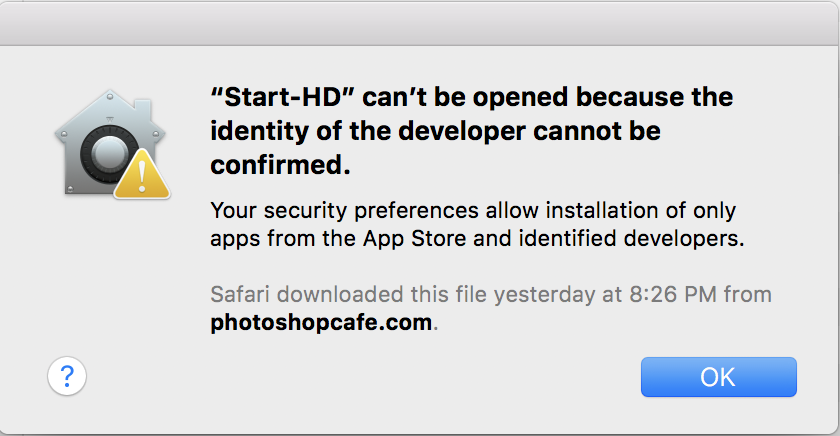
In recent versions of Apple and Windows (and browsers), there has been an aggressive move to disable Flash. On Mac Sierra and High Sierra, it has been sandboxed by Apple, meaning that most Flash Applications won’t work. (On previous versions, see next tip on how to enable it.) We have been anticipating this day and built-in redundancy to our products. While you may not be able to use the custom interface on some systems, you still have full access to the training videos. Go to the clips folder in your download. All the videos are there in industry standard H.264 format. Simple drag these into a folder, or your favorite video player, such as iTunes. We have named all the videos in such as way, that they will stay organized and easy to watch individually or as a playlist. This is also how you copy them to your mobile devices, for anywhere viewing. We still feel its a better experience for you to download a single zip file, rather than waste your time with lots of individual video files like most other sites offer.
We hear it’s a better experience for you to download a single zip file (with everything contained within), rather than waste your time with lots of individual video files like other sites do.
Apple OSX: “The file is damaged and should be thrown in the trash”
This weirdly worded message or something similar will be displayed if you have the default settings in gatekeeper turned on. This basically rejects everything not purchased through the Apple app store. Very easy to change.
In Yosemite, Sierra etc the message has changed, but the fix is the same.
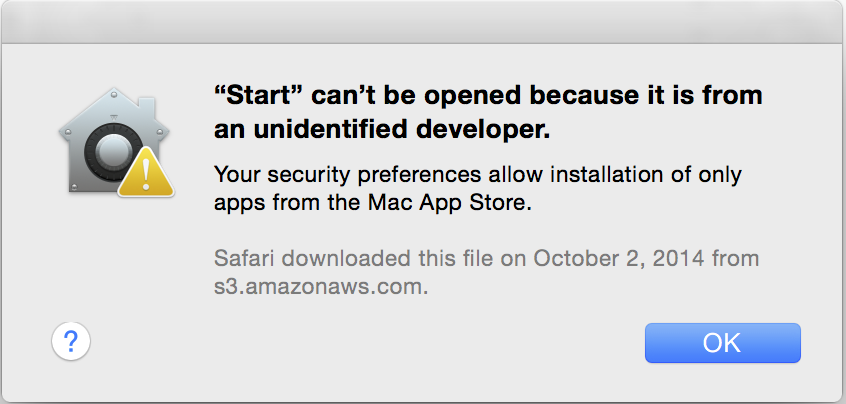

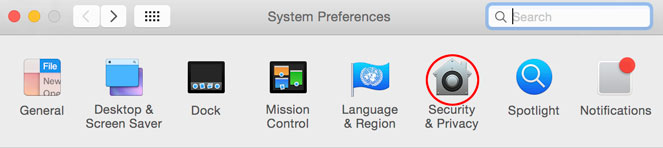
East fix: Go to System Preferences and click on Security & Privacy
1. Click the padlock to make changes (It will ask you to enter your password to make the changes).
2. Change to Anywhere. (you can change it back later if you like)
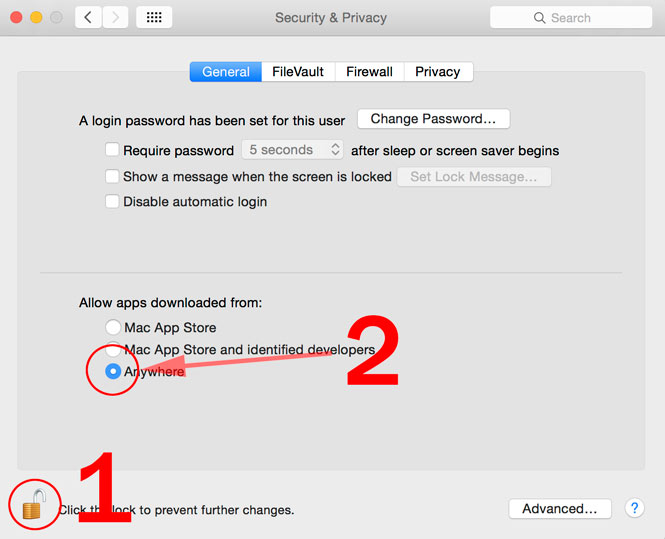
That’s it, your problem will be resolved.
Chrome Browser: This file isn’t commonly downloaded and is dangerous
This sounds very scary and in fact, as you continue it gets to sound even scarier. For some reason a small few (but not most) Chrome users have been getting this message.
Our file is not dangerous. They are hosted and downloaded on Amazon’s secure servers. These are some of the most secure and safe servers in the world.
Solution: Click the little button that says allow. You will get another warning like your computer is about to blow up, talk about overly dramatic. You can safely ignore this bogus warning and everything will work fine for there forward. (We are working on solving this glitch. I would add a screen capture, but I’m unable to reproduce this error message. We aren’t the only publishers struggling with this currently, we are verified by Google and secured by Amazon and Geotrust).
Walk Through on installing the PhotoshopCAFE downloads on Windows
This tutorial will show you how to install and run the training that you have purchased from PhotoshopCAFE. If you have already downloaded the file, skip to step 5.
DOWNLOADING
1. If you have an option to Open or save to file, choose the Save to file. This will allow the entire product to be saved to a location on your computer rather than a temporary destination
Click Save
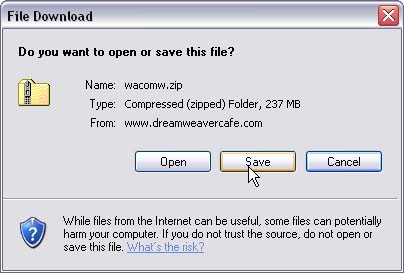
2. A dialog box will appear, choose a destination to save the file. Usually, the desktop is a good choice. Take note of the location (desktop) and the filename
3. Click Save
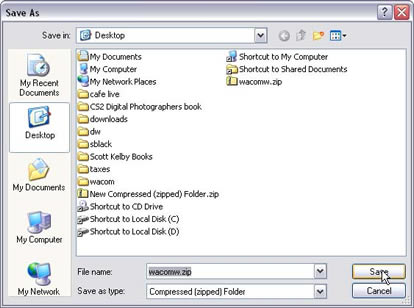
4. The file will now download to your computer, be patient because it is a rather large file and could take a while. Remember – “a watched pot never boils” So this may be a good time to go get a cuppa. It’s best not to disturb your computer while it’s downloading. (You can perform other functions if you prefer, but try not to use the internet for now as it will slow down the download process).

The file is now downloaded

6. You will see the files on the right, you cannot use these yet because they are still in a compressed folder. Click the task “Extract all files”.

7. The extraction Wizard will now open
Click Next
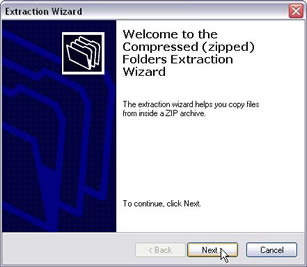
8. Now we will decide where to put the program
Click the browse button
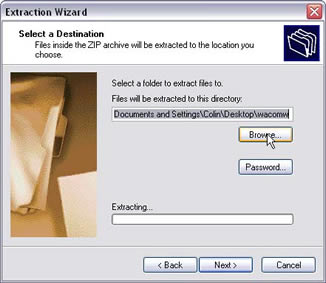
9. Choose a destination by clicking on the file structure on the left, it may be the desktop (You can always move it later)
10. We will want to put this inside it’s own folder or you will have files all over the place. Click “make new folder”
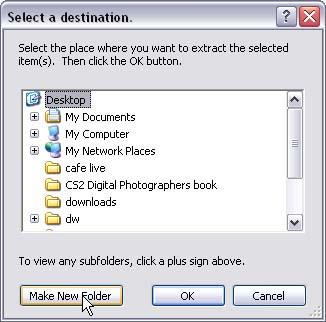
11. Give your new folder an easily identifiable name. (Note if you have multiple PhotoshopCAFE products, put each one into it’s own folder.)
12. Click OK
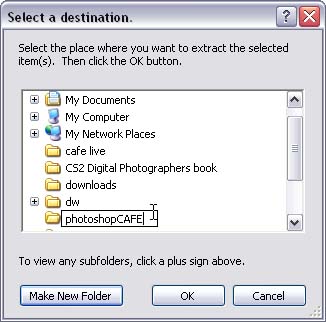
13. Click Next and the extraction process will begin

Note to Windows Users: If the extract doesn’t work try winzip or Winrar. These are standard programs that everyone uses to open compressed files. You can get free evaluation copies from https://www.rarlab.com/download.htm or winzip.com
14. When the extraction is complete, navigate to the new folder that you created. You should see all your files as shown. (If you don’t go back to step 5 and carefully follow the instructions).
15. Double click on the start.exe file to run the training. (On mac run the start file)
Note: It’s important that you don’t move any of the files around within the structure. If you want to move the product, move the entire folder together.
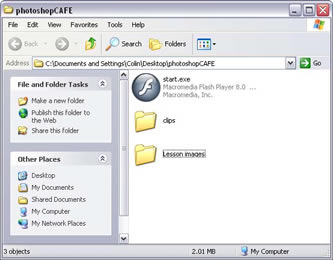 Fig 11
Backing up to a CD: Take the entire contents of the folder as shown in Figure 11 and burn to disk. Do not include the parent folder (PhotoshopCAFE in this case) You should be able to run the program from a CD on mac or Windows.
PhotoshopCAFE Anywhere.
What is PhotoshopCAFE ANYWHERE?
This is our new way of serving you with the content that you need, where you need it and when you need it.
For a long time, I have wanted to get you your training in a way that it’s flexible to fit your lifestyle. We didn’t want to just copy what other people are doing, because that isn’t always working.
The reason is we want to look to the future and serve the present. We simply cannot do that while hanging on to the past. I have heard from so many of you, that you no longer have a DVD player in your computer and that most new computers haven’t had a DVD ROM for a number of years.
I have also heard from a lot of you, that you are now wanting to watch your training on tablets and phones. However, you don’t necessarily want to be connected to the internet all the time. You travel on trains in planes, busses, and ubers and want to watch your training there too (Actually this is the best time to learn. Turn your commute into a university).
Another thing, Adobe is doing smaller, incremental updates between major releases. It’s impossible to do a re-run of a DVD each time and send it out. Also, emailing a new download is difficult, and if you miss the email, you would miss the update.
So the solution that we came up with is PhotoshopCAFE ANYWHERE.
This means, in the future, when you buy premium training from PhotoshopCAFE, you can download it to your computer. All the video files are in the clips folder and named in such a way, that they will be easy to use when you copy them to your mobile devices (Through iTunes, or your player of choice). So you can watch them anywhere.
But that’s just part of anywhere. The other part is anytime access. You will have your own control panel, where all your downloads will be listed and you can re-download them, whenever you like.
This means, on certain training, we will be able to drop in updates that you will be able to download them whenever you like and stay up to date.
In fact, if you have purchased a download from us in the past 5 years, just log into your account and your downloads are there now, today!
This is just the beginning! We have lots of work to do and lots of ideas to expand all of this for you in the future. PhotoshopCAFE is one of the longest-running Photoshop resources in the world, and we plan to be around to serve you long into the future. PhotoshopCAFE ANYWHERE is one way that we can do this.
FAQ:
1. So you are ending DVDs?
After 17 years and pioneering CD and DVD Roms in our industry (yes, we were the first), we have to cut the anchor, DVDs are fast becoming obsolete.
2. I bought a DVD, can it be added to my account?
Unfortunately, there just isn’t a way to do that right now, the man-hours would be enormous to do that.If you have a DVD, you can still copy the digital files from the clips folder to your mobile devices and other computers, so you still have the ability to watch your training anywhere.
3. Is this a subscription?
No, you still buy your training as you need it and some of the courses will come with free updates in between major Adobe updates. Big releases like 2017/2018 will be paid purchases.
4. What about streaming video?
We have had streaming video for years now at academy.photoshopcafe.com If you have purchased our streaming training courses, nothing has changed for you, just remember that it’s a separate account login. We are looking at adding a streaming option to PhotoshopCAFE in the near future. (Just one exciting feature on its way)
5. I bought a download 4 years ago, 10 years ago. Can it be added?
We can go back 5 years because this is how long we have been using the database solution we have and we are able to import accounts. Before that, we processed everything manually and we didn’t have accounts.
I hope you are as excited as we are moving forward! This is just the beginning and I’d love to hear what you would like to see here at your CAFE.
PS Don’t forget to follow us on Social Media for more tips.. (I've been posting some fun Instagram and Facebook Stories lately)
You can get my free Layer Blending modes ebook along with dozens of exclusive Photoshop Goodies here


How to make a sticker in Photoshop. Add a posterized look to a photo and export picture from Photoshop with...

Photoshop 2020, new feature tutorials. PhotoshopCAFE Photoshop 2020 Superguide.

s it possible to make a selection of this semi-complex shape in only 3 selections? Of course the answer is...