
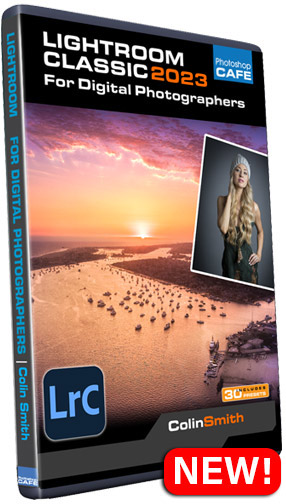
Lightroom Classic 2023 for Digital Photographers
Lightroom Classic 2023 for Digital Photographers
What You Will Learn
- Course #1 : LIBRARY
- Course #2 : DEVELOP
- Course #3 : OUTPUT
THE MOST COMPREHENSIVE LIGHTROOM CLASSIC 12 (2023) TRAINING
Quick Note: I am in the process of making the newest version of this training. Anyone who buys this course from Jan 2026 onwards will get the new version for free.
Now in its 10th edition, this award-winning training has been updated (5 hours of brand new content in the develop module alone). All the new masks and AI tools covered IN DEPTH.
Do you need to Learn Lightroom Classic? I mean, really learn it. Are you frustrated because your Lightroom catalog is a mess? Maybe you just want to make your photos look better (how about a LOT better, like the ones you see “rockstar photographers” doing). Imagine having all of your photographs perfectly organized and being able to find what you want instantly. Imagine being able to quickly make your photographs look pristine or even push it a little bit beyond the normal, with confidence.
Maybe you have tried other training and it was incomplete, scattered and confusing. You just wished someone would tell you HOW to do it but also explain WHY something works, so you can reproduce it on your own library of photographs. I’m going to guess you are also tired of heady, overly technical instructions and just want a knowledagable friend to sit down and explain Lightroom Classic to you.
This is the A-Z Lightroom training. LIBRARY // DEVELOP // OUTPUT. Three complete courses in one, with zero overlap.
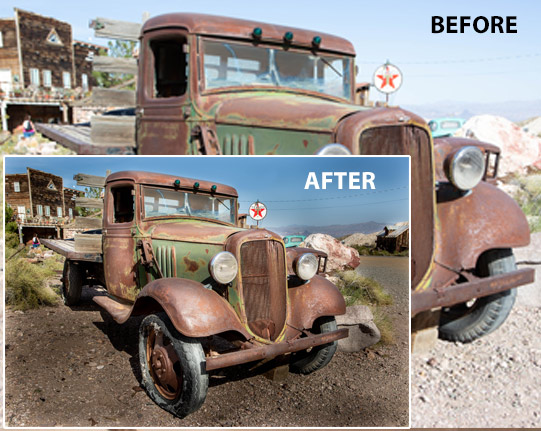
This is what makes this training so unique. You have an award winning (3X Guru award, Time Magazine, PPA awarded) expert, who is known for his calm, conversational style, that is friendly and easy to understand and follow. Colin was named one of the top 20 instructors at Adobe Max (Ranked by 15,000 attendees).
We didn’t assume we know everything about your needs. We asked our very large community (you were possibly one of them) specifically what they struggle with the most and need to learn. We received hundreds of responses and acted on it. As a result, we beefed up the areas that people struggle with the most and produced this, what we believe to be the most complete, finest Lightroom Classic training anywhere.
In 140 digestible lessons, we will go though Lightroom Classic together in depth. This 15+ hour course will train you as well as serve as a valuable reference library for the future. We go beyond just the tools (they are all explained of course and all the latest features are covered in depth. ). You will learn workflows and strategies. How to build catalogs and organize your photos. How to find anything. How to migrate to different computers or hard drives. How to find missing images. How to clean up your Catalog and how to structure it in the first place. Workflows and steps to fix and polish your photos and videos (yes, videos). How to add the finishing touches to make your images stand out from the rest and quickly retouch and finesse details. How to automate many things to shave hours off your workflow. The steps for printing and outputting books, slideshows and much more.
If you are a complete beginner, you won’t be left behind, if you are more experienced, you will love learning the new tools and workflows of Lightroom Classic as well as lots of hidden and undocumented tips and tricks.
No matter your level, you can quickly master Lightroom Classic with effortless ease.
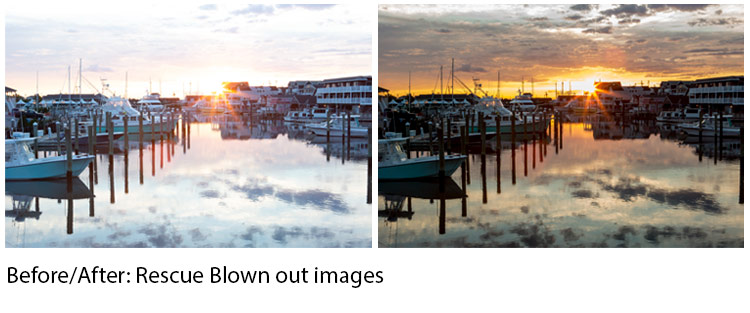
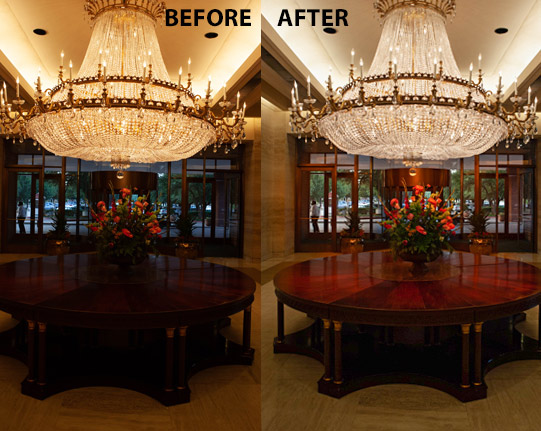
This is the most comprehensive video on the market for Lightroom. Learn how to import, organize, develop and output all your captures with effortless ease. Enjoy in-depth coverage, pro techniques, secret tips and Colin’s way of breaking down even the most complex tasks into quick and easy to understand techniques. You’ll spend less time in front of the computer and more time behind the camera!
If you are new to Digital Photography, an old-hand or someone looking to learn the “correct” way of doing things, look no further. Watch over Colin’s shoulder as he demystifies Lightroom Classic. You’ll learn all the shortcuts, tips and tricks from a true expert. Do you ever get frustrated with tutorials that don’t work in the real world? In many cases Colin shows you multiple methods so that you can choose the one that’s best for your photo.
This is not like other training videos. The techniques aren’t from a classroom bubble. This is what works today in the real-world. There are no monotone presentations with boring uninspiring images. You’ll learn tons, you’ll have fun and most of all you’ll be inspired. See why millions of people are passionate about PhotoshopCAFE training. (50,000,000+ visitors to date). Yes, that’s million.
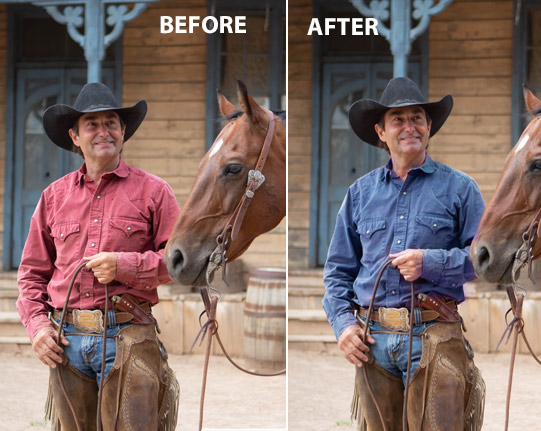
This complete training course contains 15+ hours and 140 lessons of Full HD Video. It’s actually 3 courses in one.
If you make photographs: Beginner to professional, this is the training you have been waiting for. You’ll not only learn the HOWS, you’ll understand the WHYS!
Included:
Sample Catalog with Exercise files so you can follow along.
Free update in November 2022, so you will be current with the next version of Lightroom too!
Special Bonus: 30 Lightroom Classic Presets and 8 Custom Color Profiles included!
PDF Table of contents so you can easily find what you need.
3 courses in 1 – LIBRARY – DEVELOP and OUTPUT
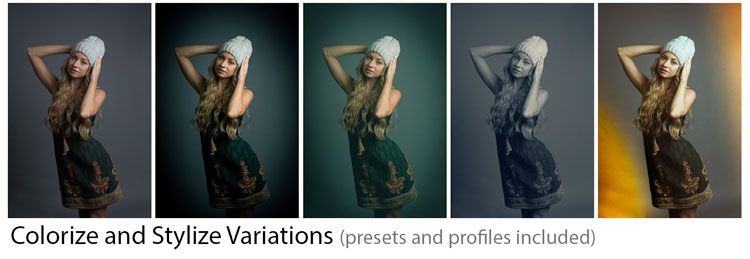
Download right now and begin your journey in Lightroom Classic today!
You aren’t alone, join the millions of photographers who are part of the PhotoshopCAFE community!
The complete training for Lightroom Classic (2023 version)
3 courses in one!
Course #1: LIBRARY

Getting Started
- Welcome
Set up exercise files, import sample catalog - Newest Features
Up to speed with what’s new - Overview
Lightroom in a nutshell - Lifecycle workflow
Birds eye view of the entire Lightroom workflow - Preferences
Essential Lightroom preferences - RAW
Raw files explained - XMP sidecars
Understand XMP, your key to sharing raw files outside Lightroom - DNG
What is DNG and how Lightroom can help - Importing from a card
How to import images from your camera card - Importing Locally
Import images from your internal/external drive - Auto Import
Set up a watch folder to automatically import images - Tethered Shooting
Connect your camera to shoot directly into Lightroom - Create custom Identity Plates
Customizing Lightroom to display your name, logo and end markers - Panel Management
Tips and tricks for working with panels
Viewing
- Volume Browser
Viewing disks and space remaining - View Options
The best ways to view your photos - Library Filmstrip
That filmstrip at the bottom is really useful - Grid View
Working with Grid view, thumbnails and view options - Stacking
Making molehills out of mountains - Auto Stacking
Automatically stack photos by capture time - Lights Out Mode
Viewing your photos on a virtual light box - Loupe
Get a closer look at your images - Compare
Comparing 2 images to choose the best one - Survey View
Viewing multiple images at once - Understanding Previews
How previews work, make them efficient - Smart Previews
Work on your images without them being physically present - Dual Monitors
Working on Multiple monitors
Library/Catalog
- Catalogs
Setting up your Catalogs - Upgrading Catalogs
Upgrading Older Catalogs - Export catalogs
Export Catalogs from Lightroom - Merging Catalogs
Managing your images on 2 computers - Catalog change disk
How to add or rename a drive without breaking things - Catalog move to other computer
How to move to a new computer without breaking things - Find Missing images
How to locate and relink missing images - Integrating with Lightroom CC/Mobile
How to sync Lightroom Classic with Lightroom CC/Mobile - Folders
How to manage and use folders - Collections
How collections become your main organization tool - Quick and Target Collections
A neat way of speeding up organization - Smart Collection
Automatically create live collections - Backup
Backup catalogs and your images
Metadata
- Metadata
Understand metadata and apply it to your photos - Metadata Templates
Save metadata templates and presets, then re-use them - Rating, Flag, Label options
Ratings, flags and labels options - Ratings
Rate your photos - Flags
Use flags to mark photos - Labels
Identify photos with colored labels - Filter Bar
Find anything with the Filter Bar - Keyword basics
How to use keywords to organize images - Suggested Keywords
Use the new Suggested Keyword feature - Keyword sets
Save time with custom keyword sets - Painter tool
Using the painter tool to turbocharge your multiple image workflow - Facial recognition
Setup and training Lightroom to find and sort faces - Time Change
Sync the time-zone of your photos

COURSE #2 – DEVELOP
Adjustments
- Straighten
Level crooked horizons - Cropping
Crop to specific sizes and for creativity - Lens Corrections
Fix keystoning and barreling - Camera Calibration
Choose the process version and compensate for your camera color - Color readout
See the color values of images - Histogram
Histograms explained and used - White Balance
Remove color casts from photos - Quick Develop
Making adjustments in the Library panel - Auto Corrections
1-Click fixes, how to fine tune auto corrections - Basic Adjustments
Basic Adjustments panel explained - Curves
Understanding and using curves for targeted adjustments - Color control
Use HSL and color control - Dehaze
cut through haze and fog, or add some for effect - Texture
Add or reduce surface texture - Noise reduction
Remove the grainy noise from a photo - Chromatic Aberration
Removing color fringes - Sharpening
Make your photos nice and sharp - Open up shadows
Fix a backlit subject - Fix Dark Photos
How to rescue a dark, underexposed image - Fix Overexposure
How to rescue a bright, overexposed image - Fix bright images
2nd example of fixing overly bright images - Punch flat color
Add color to dull images - Virtual copies
Working on duplicate versions without filling up your hard drive - Batch processing
Save time by editing multiple images at once - History
Use history as an advanced undo - Snaphots
Experiment with different edits and easily revert back - Black and White
The best way to enhance black & white photos and convert color to black and white - Color Grading
Create stunning color grades, including split tone and cross processed looks - Presets
1-click effects with Presets, how to make your own - ISO Adaptive Presets
Presets that change based on ISO - Loading Presets.
How to install Presets into Lightroom - Color Profiles
Use powerful profiles to process color - Loading Color Profiles
How to install custom color profiles in Lightroom - RAW Defaults
Automatically use different settings on cameras

Retouching
- Redeye
Get rid of the dreaded redeye with ease - Retouch faces
Reduce blemishes, wrinkles, whiten eyes and teeth - Cloning and Healing
Remove anything from a photo - Spots and Dust
Remove spots and dust from photos for a perfect finish - Change colors of objects
Learn how to change the color of individual objects in a photo
Selective Adjustments
- Mask Panel
Learn to use the brand new Masking in Lightroom - Select Sky
Use the AI powered sky selection - Select background
Use AI masks to select subjects and backgrounds. Blur the background in LIGHTROOM! - Intersecting masks
What is intersect? How do you use it? - Adjustment Brush
in-depth look at the adjustment brush to paint on your adjustments - Dodge and Burn
Add 3D depth and make your photo pop with a fresh approach to dodge and burn - Gradient Adjustment
Seamlessly adjust skies and more with the gradient tool - Radial Filter
Change the lighting to your landscape photos - Range Masking
Selectively hide or show adjustments to specific regions automatically - Range Masking Depth Map
Use the Depth Map from a smartphone (HEIC image) to mask objects - AI Face retouching
AI masks select part of face automatically - Select People
Automatically select individuals for a group, or the whole group - Lens Vignette
Compensating for lens vignette. Add a vignette for a creative feel - Special FX Vintage effects
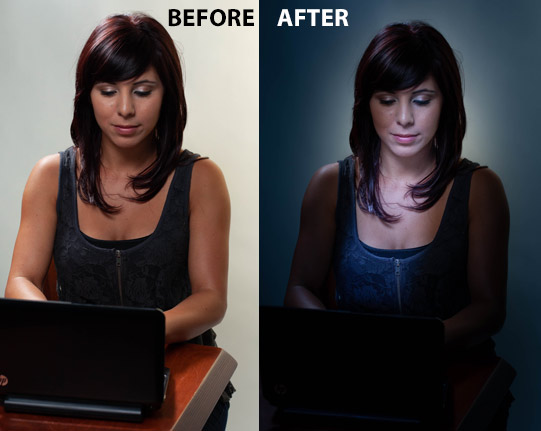
Create a vintage effect, including light leaks - Day to Night
Turn Daytime into nighttime
Advanced Adjustments
- Lightroom and Photoshop
How to use Photoshop and Lightroom together - Batch Processing
Save time by Editing Multiple photos at once - HDR
Create High Dynamic Range Photos in Lightroom - Panorama
Stitching a Panorama Image in Lightroom - Advanced Panorama
Multi-layered panoramas and fix keystone - HDR Panorama
Auto Make an HDR Panorama
Video
- Video Intro
An intro to working with video in Lightroom - Video Color Grading
How to apply creative adjustments to videos to create stunning looks - Combine Video
Trimming and combining video shots

COURSE #3: Output
- Video Export
Getting your video out to the world - Watermarks
Create Watermarks that can be used all over Lightroom - Exporting images
How to produce photos for social, web, multimedia, print etc. - Exporting Presets
Automate the process of exporting your photos - Multi Batch Exports
Run multiple exports at once - Email Photo
email photos from Lightroom
Maps Geotagging your photos using built in google maps
Printing
- Soft Proof
Prepare your images for printing - Printing
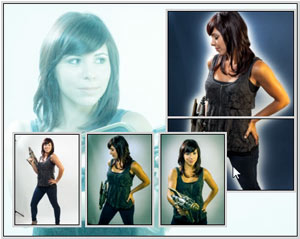
How to print correctly from Lightroom - Picture Package/Contact Sheets
Making multiple picture packages and contact sheets - Custom Layouts
Layout pages for books or printing/Exporting
Slideshows
- Impromptu Slideshow
A Quick Slideshow from anywhere - Slideshows
Setting up a slideshow - Customize Slideshow
Customize your Slideshows - Slideshow Custom Text
Adding custom text to slideshows - Pan and zoom
Slideshows Add an animated Ken Burns effect to photos - Slideshow Video
Use Videos in Slideshows - Music to Slideshows
Add music to your slideshow presentations - Export Slideshows
Exporting Slideshows for use online or presentations
Books
- Book Overview
Getting Started with books, use Auto Layout - Custom Layouts
Customize photo and page layouts - Text and finishing Book
Work with text and finishing techniques for books
Web
- Web Galleries
Make a webpage, overview of web galleries - Build a Web Gallery
Creating and publishing a web gallery - Thanks and Goodbye
Previous version of the training have twice won Hot One awards as the best training video of the year from (PPA) Professional Photographer’s of America

$99.99





Chris (verified owner) –
Every element of the course is clear, in a logical order and well presented. The 2022 version was a winner and this just rounds off all the newer features in Lightroom. Colin’s regular tutorials and tips are a treasure trove for Lightroom users and complement the course brilliantly.
Robert Warbrick (verified owner) –
This is the best course on Lightroom you can get, Colin is an excellent tutor. If you want a Lightroom course this is the one. Only problem i cant find how get the updated vides.
Jonathan R Bolton (verified owner) –
I’m a newcomer to digital photography but I was an intermediate amateur in the film days, having my own darkroom. I looked at many of the course offerings for Lightroom on the web and even purchased the Adobe “Classroom in a Book” for Lightroom 2022. I settled on Colin’s course because the description appeared to be what I was looking for and the price was right.
I can say that I am very pleased with my decision. While the Adobe book does show you how to do certain things, it does not describe Lightroom in the way Colin does. Each of the over 100 videos that comprise the Library and Develop portions of his course describe all the features of a particular function in a way that you come away with an understanding of just what is available in Lightroom. His guidance on how to set up your catalog and the use of collections is a huge help for the newcomer to Lightroom. Each video (with the exception of two, one on the Brush, the other on dodging and burning) stand by themselves as self-contained explanations of a particular menu option or function within Lightroom and thus form a library of guidance to the product.
Purchasing Colin’s course is the best thing that I have done so far in my journey into digital photography. While I’m not yet ready for it, based on my experience here I plan to add his course on Photoshop to my collection.